Mobile
SpinsUP app: how the mobile web app works on iPhone and Android
 Available in AU
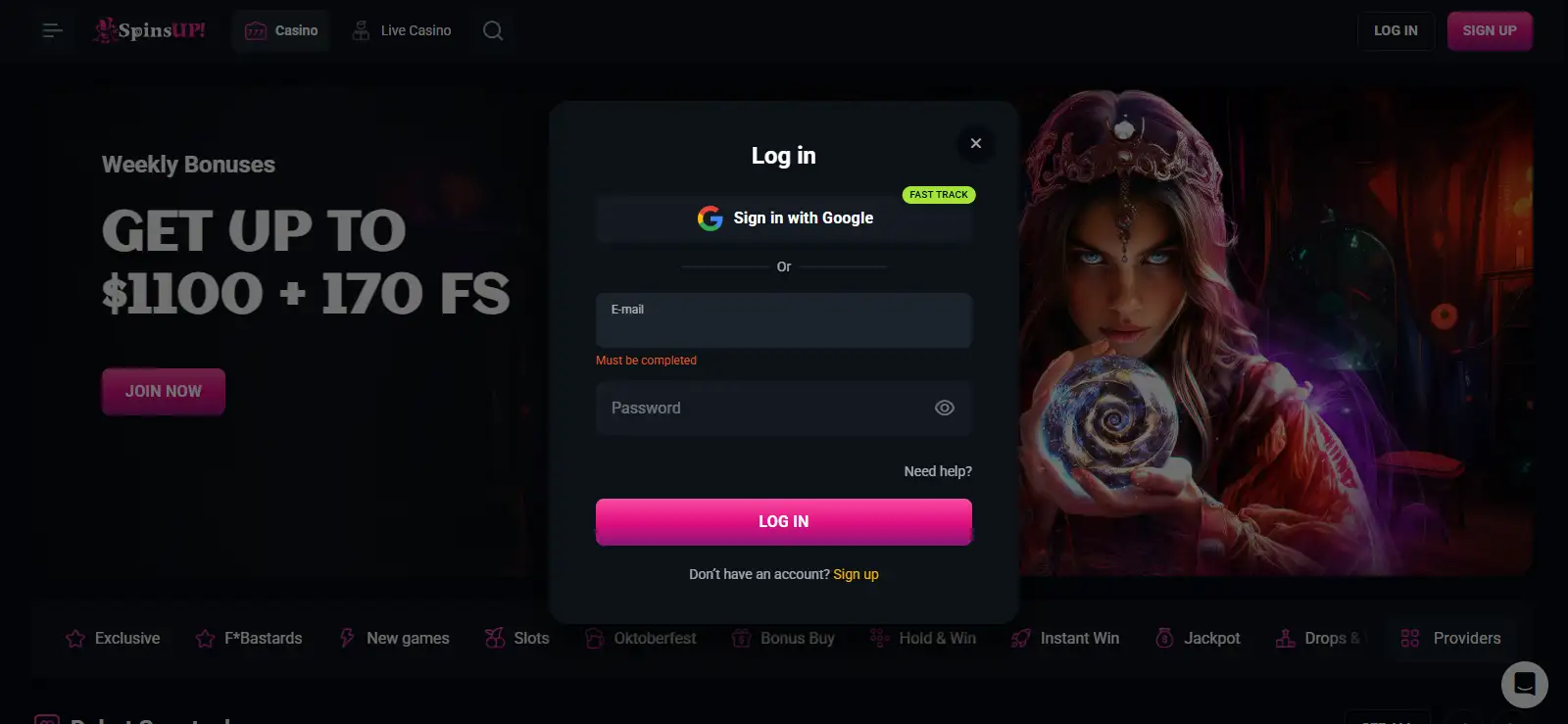
SpinsUP’s own installation page uses a web-app setup rather than directing players to a native App Store or Google Play download. On Android, the route is to open the SpinsUP site, use the browser menu, choose “Add to the Home Screen” and confirm Install. On iPhone, SpinsUP directs users to open the site in Safari, use Share, choose “Add to Home Screen” and confirm Add. Once saved, the shortcut opens the casino from the home screen while keeping the website-based account, games and payment experience.
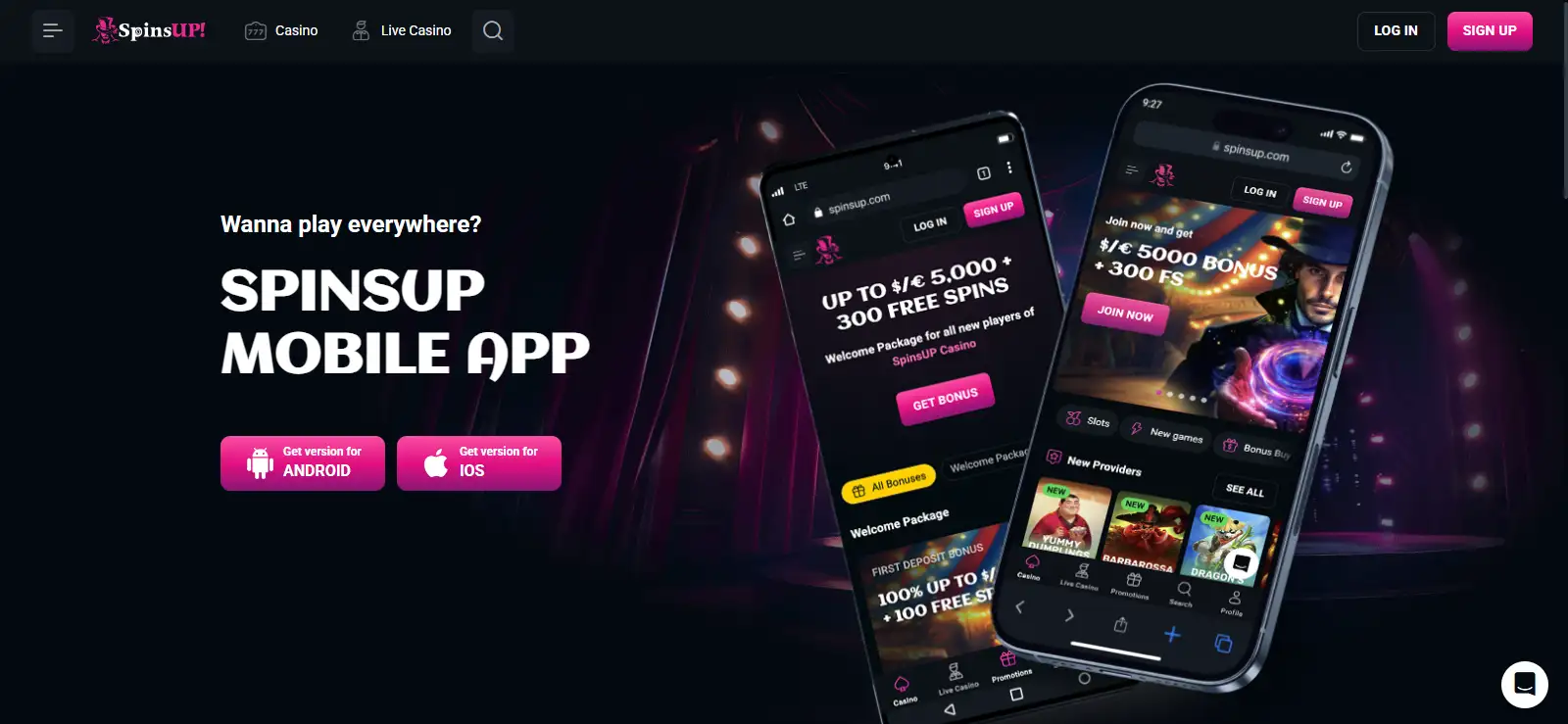
Table of Contents
- SpinsUP mobile setup at a glance
- A web app is different from a native casino app
- How to add SpinsUP on Android
- How to add SpinsUP on iPhone
- What the mobile casino includes
- Payments still use the website account
- Mobile troubleshooting that does not depend on a specific phone model
- The same account follows you between desktop and mobile
- When to use the browser instead of the home-screen shortcut
- SpinsUP mobile app questions
- When the SpinsUP web app is enough for mobile play
SpinsUP mobile setup at a glance
| Device | Installation route | What opens afterwards |
|---|---|---|
| Android | Browser menu, Add to the Home Screen, Install | The SpinsUP web app from a home-screen icon |
| iPhone | Safari, Share, Add to Home Screen, Add | The same website-based casino from a home-screen icon |
| Without installing | Open SpinsUP in the mobile browser | The current mobile website and account interface |
A web app is different from a native casino app
The important distinction is where the software comes from. A native app is normally downloaded from an operating-system store and installed as a separate application package. SpinsUP instead provides instructions for adding its website to the phone’s home screen. The result behaves like an app shortcut, but the service remains web-based.
That difference is useful when searching for “SpinsUP app” because store-search expectations can be misleading. The current SpinsUP installation instructions do not require an App Store or Google Play listing. The practical route is through the casino website itself.
For the broader casino offer, see the SpinsUP Australia review. The mobile section below covers browser access, device behaviour and the practical steps relevant to playing on a phone or tablet.
How to add SpinsUP on Android
SpinsUP’s Android instructions use the browser’s home-screen installation option. Open the SpinsUP homepage in your mobile browser and open the browser menu. The official sequence then points to “Add to the Home Screen”, followed by an Install confirmation.
After installation, the home-screen icon gives you a direct route back to SpinsUP without typing the address each time. Because the service is website-based, account access still depends on the same login credentials used in the browser.
If the install option is not visible, first reload the page and check the browser menu again. Browser menus can differ in wording and position, so the useful target is the option that adds the current site to the home screen rather than a search for a separate app-store package.
How to add SpinsUP on iPhone
On iPhone, SpinsUP directs users to open the site in Safari. Tap Share in the browser controls, select “Add to Home Screen” and then confirm Add. The new icon provides a direct launch point from the iPhone home screen.
This route is worth distinguishing from an App Store install. The home-screen entry opens the web experience and does not depend on a native SpinsUP store listing. That also means there is no reason to search for a separate iOS download when following the current official setup.
If you change browsers or clear a saved shortcut, simply return to the site and repeat the home-screen steps. If login has expired, sign in again rather than assuming the shortcut itself is broken.
What the mobile casino includes
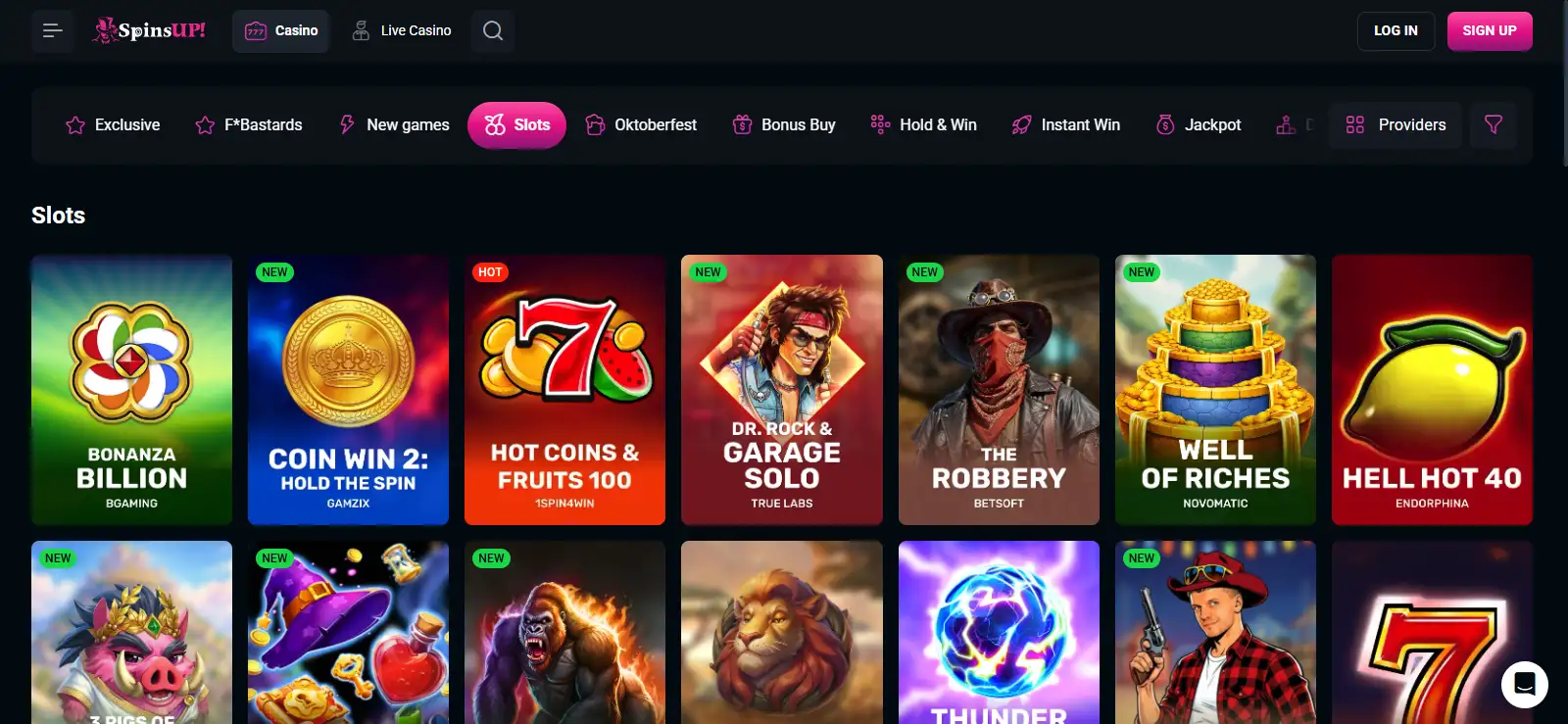
The current Australia-facing SpinsUP site exposes the main casino categories on mobile, including pokies and a live casino area. The live section includes blackjack, roulette, baccarat, poker and game-show categories. For deeper game browsing, see the full SpinsUP games section rather than treating the mobile page as a second game catalogue.
The practical mobile advantage is continuity: the same account entry points, casino navigation and major sections are available from a phone-sized interface. That makes the home-screen shortcut useful for frequent access, but it does not create a separate mobile-only account or a separate balance.
Live games can be more demanding than ordinary lobby browsing because they combine streamed dealer video with real-time interaction. If that is your main reason for using a phone, remember that streamed tables depend more heavily on connection quality and screen space than ordinary lobby browsing.
Payments still use the website account
SpinsUP supports card, bank-transfer, e-wallet and cryptocurrency payment categories, with the exact method mix depending on jurisdiction and the options shown to the account. On mobile, payment tasks remain part of the same website account rather than moving into a separate phone wallet or native app system.
That matters when depositing or withdrawing from a phone. The relevant payment limits, KYC status and method availability do not change merely because the account is opened from a home-screen icon. Use the SpinsUP payments section for the current banking structure instead of assuming a mobile shortcut creates different rules.
A simple habit is to double-check the amount and selected method before confirming a transaction on a small screen. Mobile convenience is useful, but it should not replace the same payment checks you would make on desktop.
Mobile troubleshooting that does not depend on a specific phone model
- Reload the site. If a page looks incomplete, refresh before changing account or payment settings.
- Use the supported installation route. On iPhone, SpinsUP specifically points to Safari and the Share menu. On Android, use the browser menu and the home-screen option.
- Recreate the shortcut if needed. A deleted or stale home-screen icon can be replaced by repeating the install steps from the live site.
- Sign in again after a session expires. The home-screen icon is an access shortcut, not a permanent login token.
- Check the web version directly. If the shortcut behaves oddly, open SpinsUP in the browser to separate a shortcut problem from a wider site or connection issue.
These steps avoid assuming that every Android handset, iPhone version or browser behaves identically. The exact menu layout can vary, while the underlying action remains adding the SpinsUP web experience to the home screen.
The same account follows you between desktop and mobile
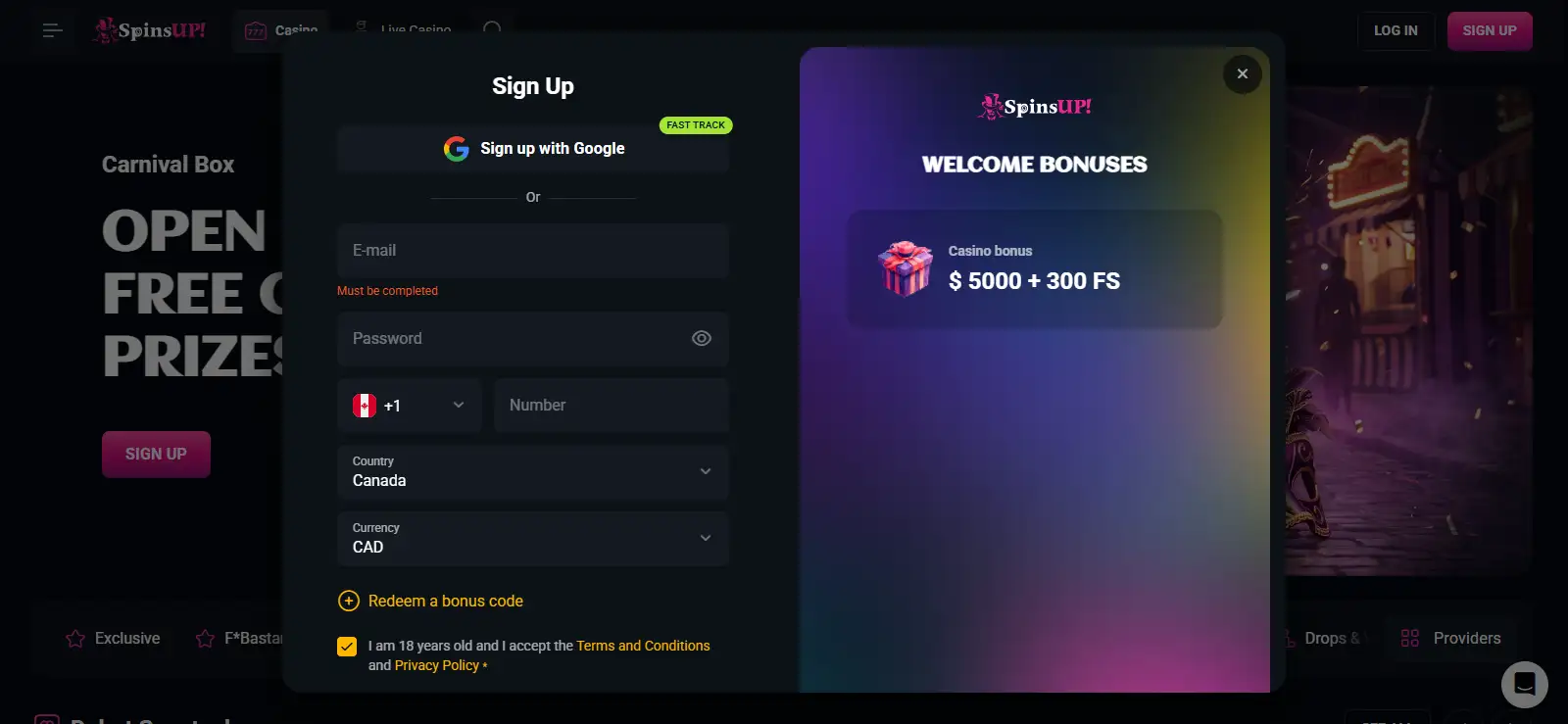
The home-screen version is not a second registration. Use the same account credentials and treat account details, payment ownership and any later verification request as account-level matters rather than device-level matters.
If you are setting up access for the first time, the SpinsUP account section explains the account lifecycle from sign-up through identity checks. That separation is useful because an installation problem and an account-verification problem need different fixes.
For security, avoid saving login details on a shared phone and use the device’s normal screen-lock protections. If the phone is lost or shared with someone else, remove saved access where possible and change credentials if you believe another person has obtained them. For streamed table play specifically, the SpinsUP live casino page covers the available live categories in more detail.
When to use the browser instead of the home-screen shortcut
The home-screen icon is a convenience layer over the same web account, so it should not be treated as a separate installation with separate account data. If the shortcut stops opening the site correctly, open SpinsUP directly in the mobile browser first. If the website works there, remove or recreate the shortcut using the current add-to-home-screen steps rather than changing account or payment settings.
If the browser session itself has expired, sign in again with the same account. Games, cashier access and account checks remain attached to that account whether SpinsUP is opened from the browser or from the saved icon. This makes direct browser access a useful way to separate a shortcut problem from an account-level issue without assuming a device-specific fault.
SpinsUP mobile app questions
Is there a SpinsUP iPhone app?
SpinsUP’s current iPhone instructions use Safari and Add to Home Screen. They do not require a native App Store download.
Is there a SpinsUP Android app?
The current Android route is a web-app install from the browser: open SpinsUP, use the browser menu, choose Add to the Home Screen and confirm Install.
Can I use SpinsUP without adding it to the home screen?
Yes. The home-screen setup is a convenience shortcut to the website-based experience. SpinsUP can also be opened directly in a mobile browser.
Are pokies and live casino available from mobile?
The current Australia-facing site includes pokies and live casino navigation, with live categories including blackjack, roulette, baccarat, poker and game shows.
Do mobile payments have different rules?
No separate mobile payment rules are established by the home-screen shortcut. Payment options and account checks belong to the same SpinsUP account.
When the SpinsUP web app is enough for mobile play
For players who mainly want quicker phone access, the home-screen web app does the essential job: it opens the same SpinsUP account, casino navigation, pokies, live casino and payment areas from an icon on Android or iPhone. The setup is simple and does not depend on finding a native store listing.
The main limitation is also the defining feature: it remains a web experience. If that suits how you play, the web app is the direct mobile route. If you expect a separately installed native application with its own store page and device-specific feature set, the current SpinsUP setup is different.
Published by the Spinsup Casino team.